
Driving the TaxMySaaS dashboard.
The web portal is what finance, ops, and tax advisors use day to day. It reads the same transaction ledger your API writes, surfaces nexus rollups, and lets you manage keys, webhooks, billing, and your team.
On this page
Layout
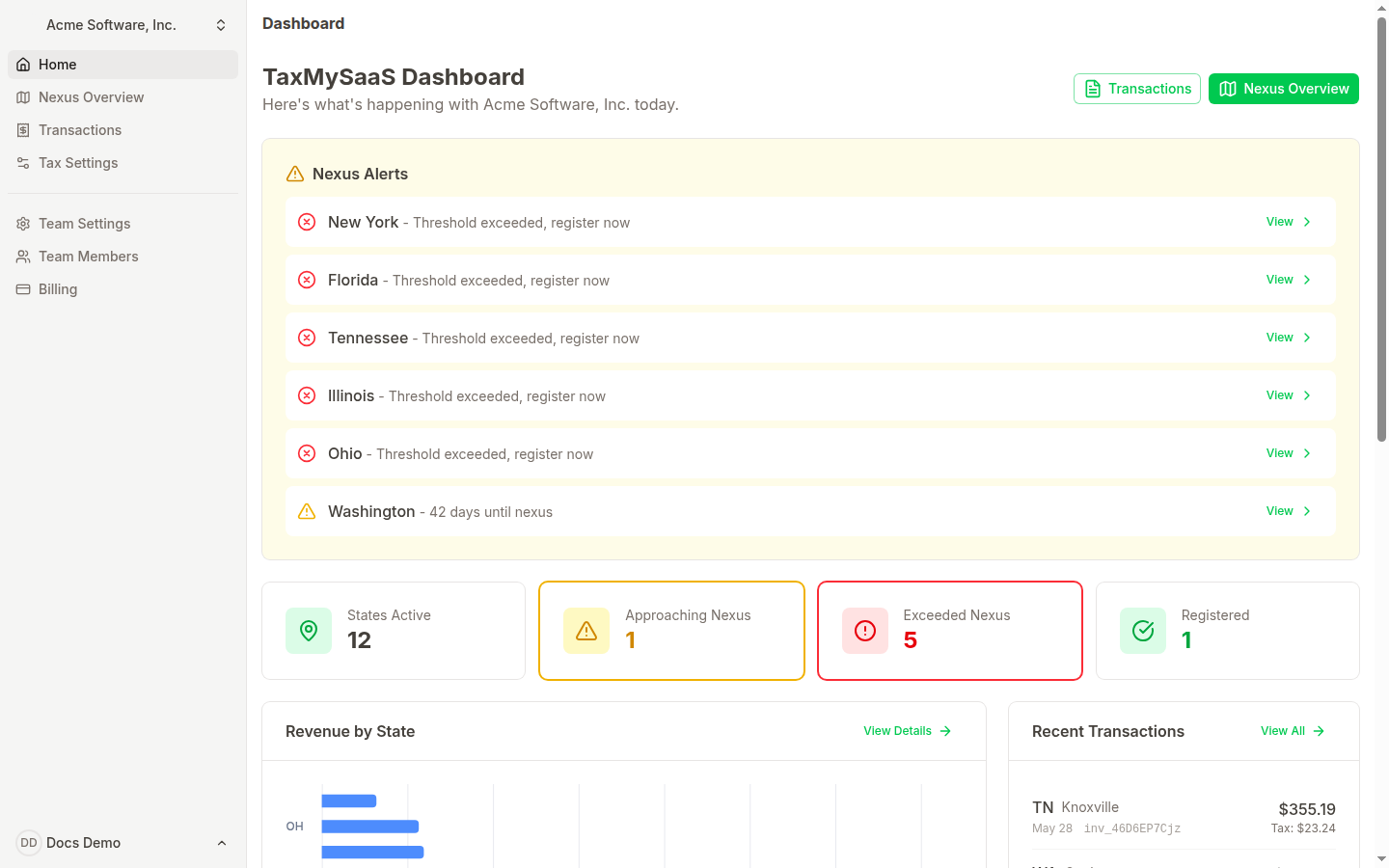
Every page in the portal lives under /dashboard/<team-slug>/…. The left sidebar lets you switch between teams, jump between sections, and access settings. The user menu lives at the bottom of the sidebar.
Home
Path: /dashboard/<team>
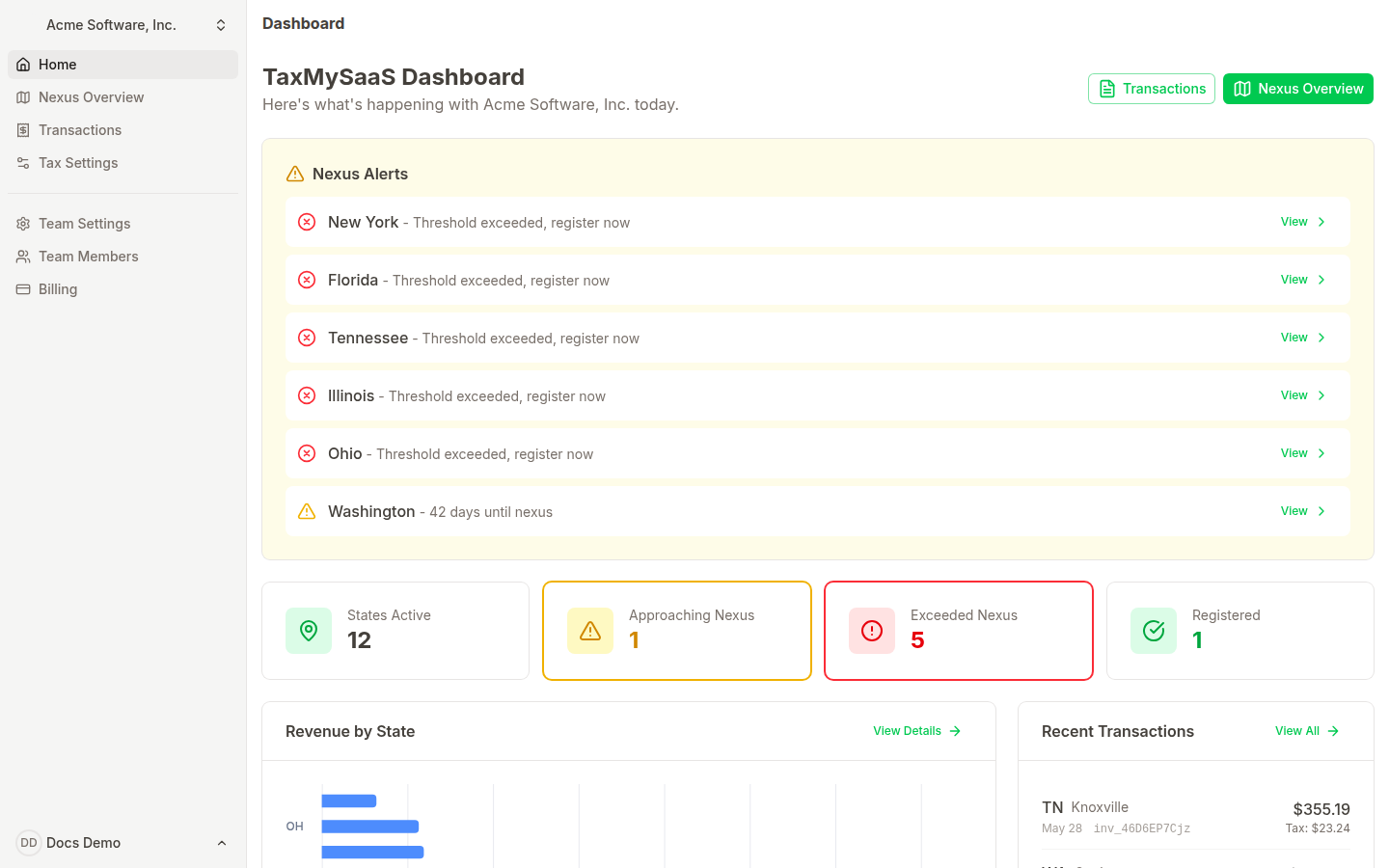
The first thing you see after login. It collapses everything to four numbers — states with sales, approaching, exceeded, and registered — then expands into a revenue chart, recent transactions, and a usage card.
What each card means
- States Active: every US state you have at least one transaction in over the trailing twelve months.
- Approaching Nexus: states between 80% and 99% of either threshold.
- Exceeded Nexus: states past 100% that you have not marked registered.
- Registered: states you have marked as registered. They no longer trip warnings.
When the home page is empty
Nexus overview
Path: /dashboard/<team>/tax
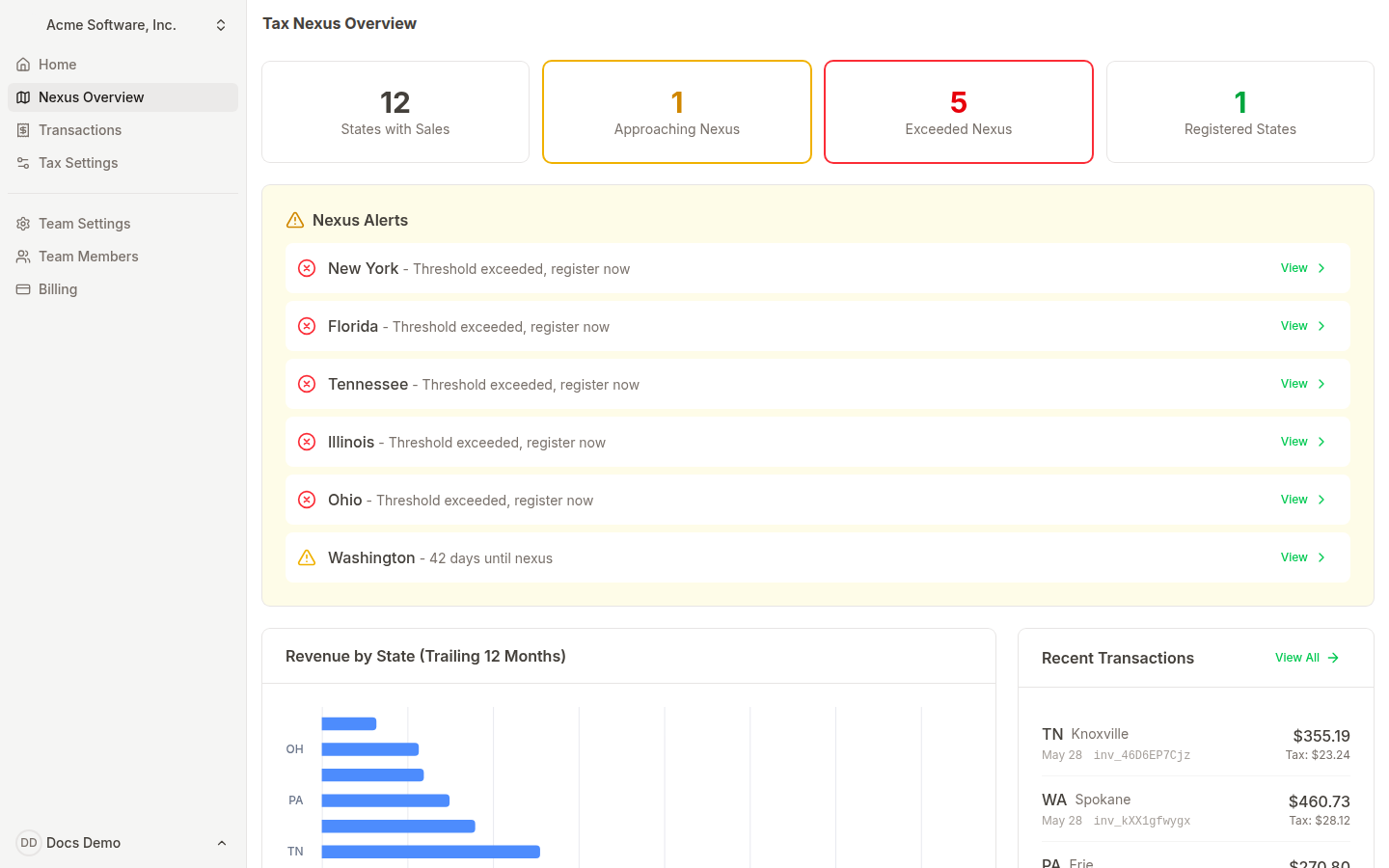
One card per US state where you have recorded sales. Each card shows the trailing-twelve-month revenue and transaction count, where that sits against the state's economic-nexus threshold, and the current status.
Filtering and sorting
The filter row above the state grid lets you narrow to a single status. Click Refresh to recompute against the latest transactions. Click a state card to drill into per-state detail, including projections and a recent transaction list.
Marking a state registered
When you complete a state registration, click Mark registered on the card or detail page. You will be asked for the registered date and optional notes. The state will move to the registered bucket, alerts will clear, and a nexus.registered webhook will fire.
Transactions
Path: /dashboard/<team>/tax/transactions
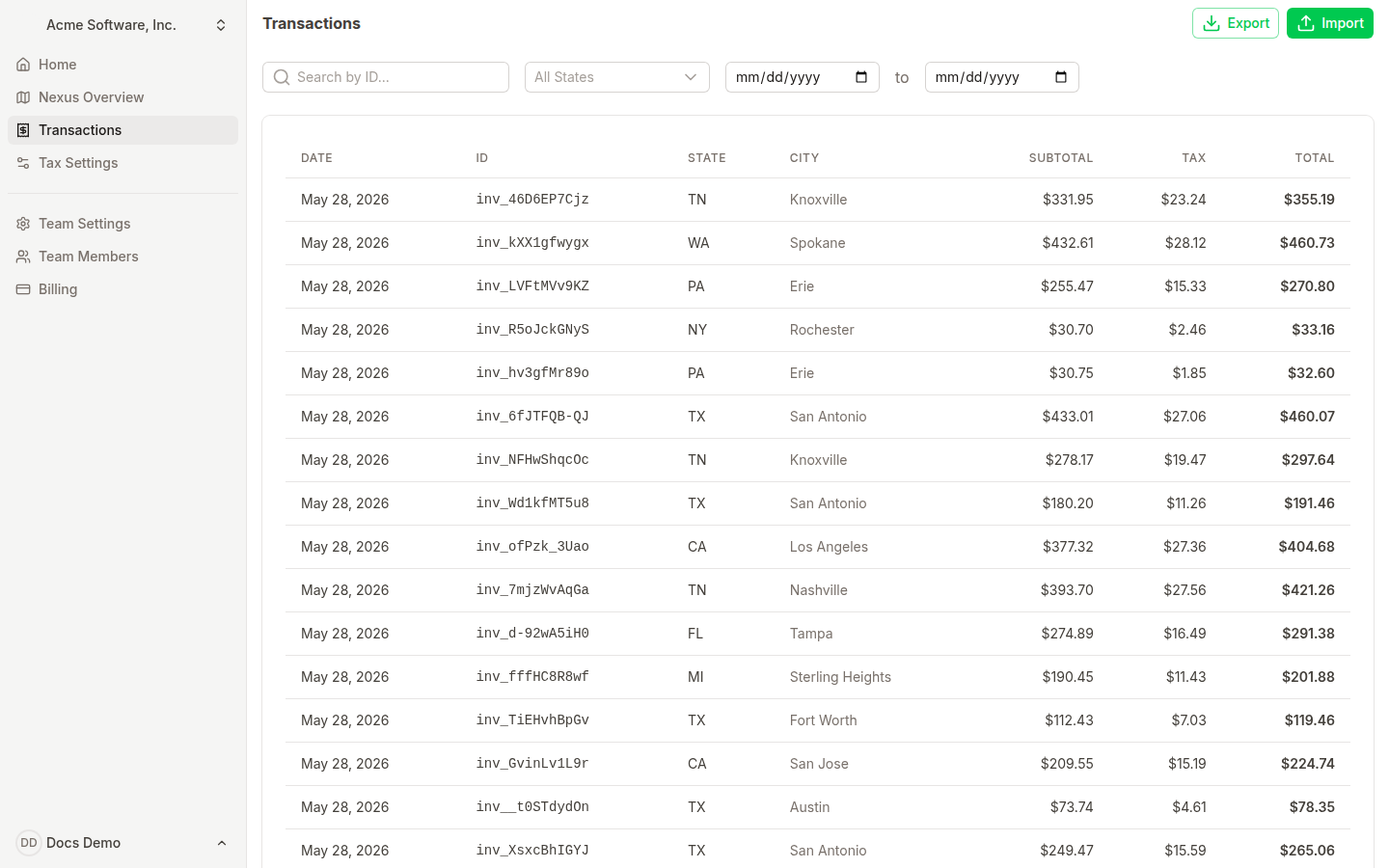
The full audit ledger. Filter by state, date range, or transaction ID. Each row links to the same data your API returns from GET /api/v2/transactions/:id — including external_id, taxable amount, jurisdiction, and any metadata you stored.
Exporting
Use the Export CSV action at the top right of the table to download the current filter as a CSV. The export uses the same column shape as the API — you can re-import it through POST /api/v2/transactions/import if you ever need to rebuild a sandbox team.
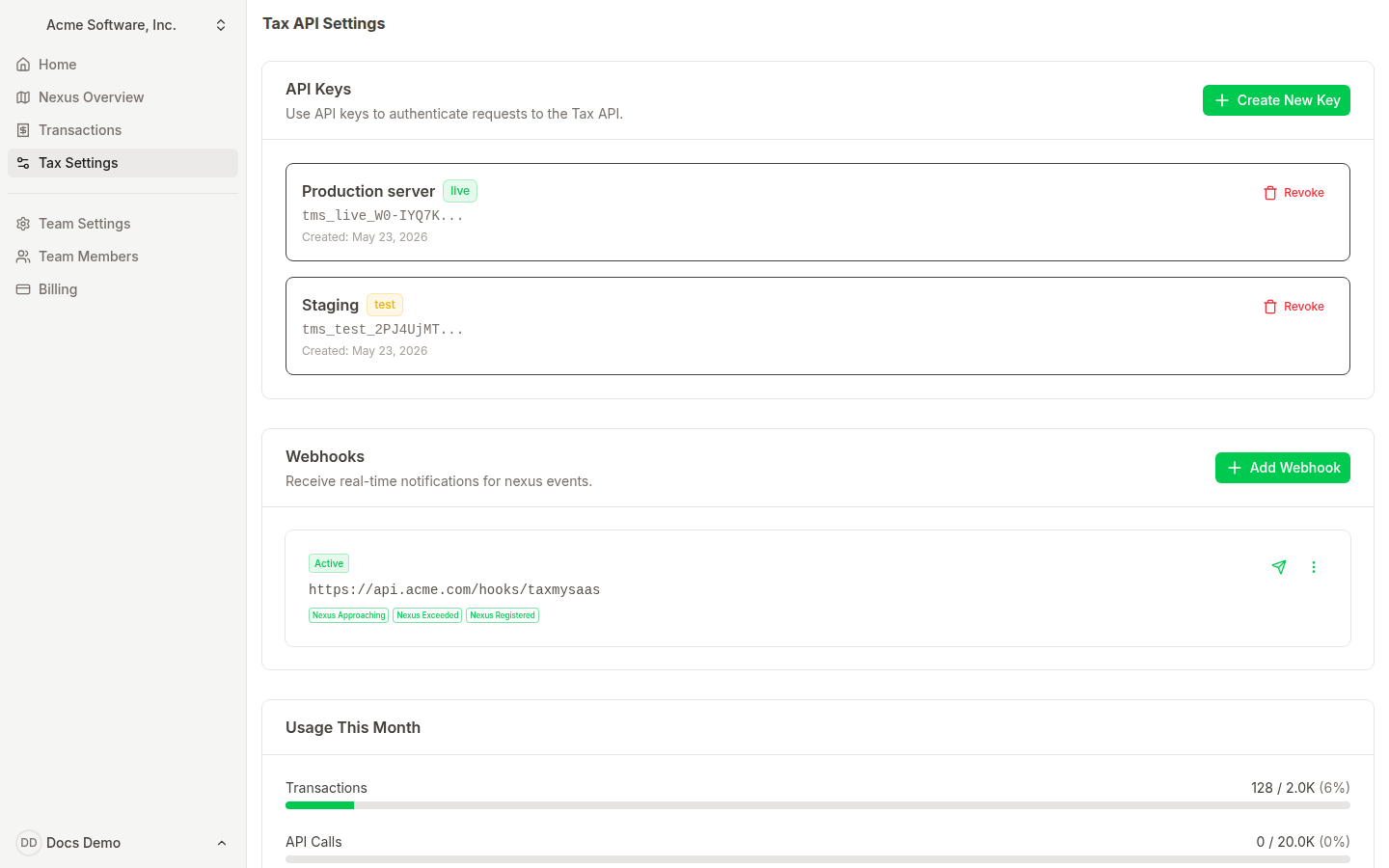
Tax settings (API keys and webhooks)
Path: /dashboard/<team>/tax/settings
API keys
Create, view, and revoke API keys. Click Create new key, give it a label, pick live or test, copy the secret, store it. Revoking a key takes effect immediately — any server still using it will start receiving 401.
Webhooks
Add an HTTPS endpoint and pick which events to subscribe to: transaction.created, nexus.approaching, nexus.exceeded, nexus.registered, or * for everything. After a few failed deliveries the endpoint is paused; use the Resume action once your handler is fixed.
Test locally with a tunnel
localhost, so plain http://localhost will not work. Team settings
Paths: /dashboard/<team>/settings, /dashboard/<team>/settings/members
- General: rename the team, change the slug, upload a logo.
- Members: invite by email, change roles, remove users. Owners control API keys, billing, and webhooks; members get read access to dashboards and transactions.
- Delete team: irreversible. Deletes the workspace and every transaction in it.
Billing
Path: /dashboard/<team>/settings/billing
Pick a plan, manage payment method, and view invoices. Each plan carries monthly quotas for transactions; current usage and the next reset date show in the usage card on the home page. Overage is billed simply at $10 per additional 1,000 API calls or recorded transactions.
| Plan | Monthly volume | Highlights |
|---|---|---|
| Starter | 2,000 calls / transactions | Single workspace, nexus dashboard, CSV import/export. |
| Growth | 15,000 calls / transactions | Webhooks, projections, unlimited team members. |
| Scale | 75,000 calls / transactions | Higher rate limits, dedicated onboarding, quarterly export. |
Account settings
Paths: /dashboard/account-settings, /dashboard/account-security, /dashboard/account-notifications
- Account settings: name, avatar, email, default team.
- Security: change password, register a passkey, manage active sessions.
- Notifications: control which emails you receive — login alerts, nexus warnings, billing receipts.